Chatting
Getting started
What you say appears in a bubble over your Tiz and in the chat. There are three tabs, and a few tricks.
Talking in your room
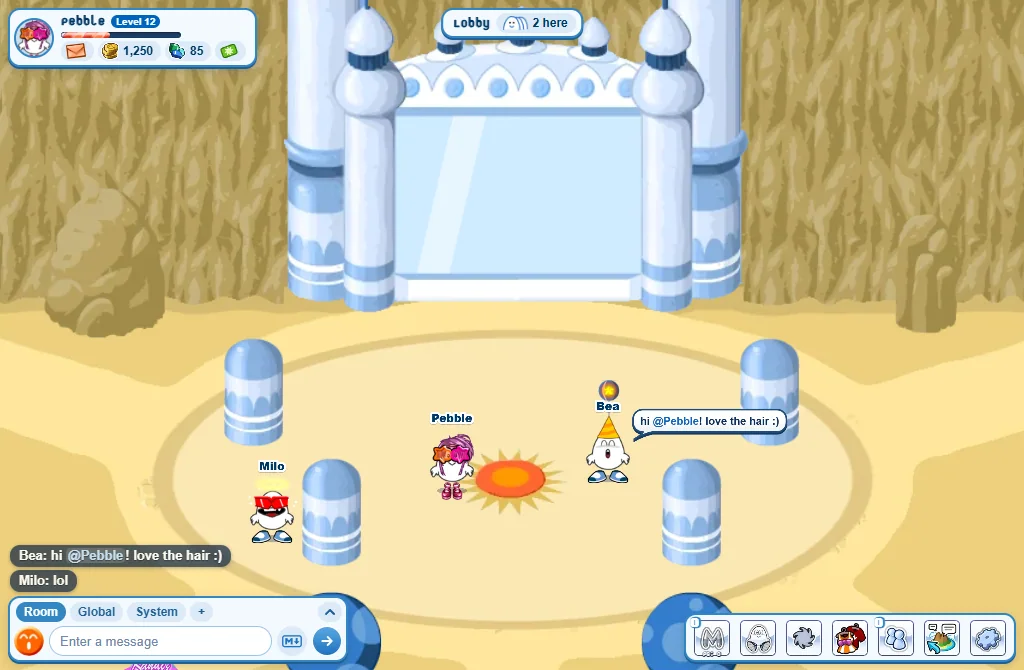
- Press Enter (or click the chat box).
- Type your message.
- Press Enter to send it.
- The up arrow brings back the last things you wrote.
- A message can be 140 letters long (100 on a phone).
- While someone writes to the room, three little dots float over their head.
On a phone: tap Tap here to talk, type, and press the send arrow.
The tabs and the chat history
On a computer the tabs sit on the chat box. The arrow at their end opens the chat history. Drag its top edge to make it taller or shorter.
What you type goes to the tab you are looking at. On Global, a green Global sign in the box reminds you that everyone will read it: press the sign to write to your room again.
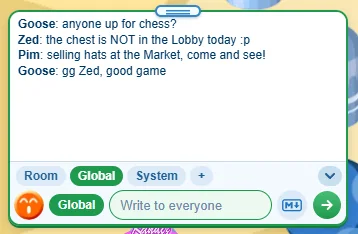
- Room: only the players in your room. This is the chat that makes bubbles.
- Global: everyone in the game, in any room. You can read it at once and write in it from level 4.
- System: the island’s own news and messages.
- A private conversation gets a tab of its own, with the player’s name.
On a phone: the bubble button beside the talk box opens the Chat history with the same tabs. Pick Global there to write to everyone. Closing it takes you back to your room.
Faces and moods
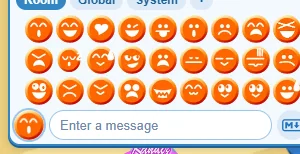
- Press the smiley beside the chat box and pick a face: your Tiz makes it.
- You can type them too: :) lol love ;) :p :o :( zzz and many more.
- A mood sent alone changes your face without a bubble. Inside a sentence, you get both.
Emoji
Type an emoji’s code between two colons and it becomes the emoji when you send it: :joy: is 😂, :heart: is ❤️, :thumbsup: is 👍. Every code Discord knows works here too.
- Start typing a code -
:jo- and a list of emoji shows over the chat box. Press one (or Enter for the first) to put it in. - A skin tone goes after the code:
:wave::skin-tone-3:. - A code the game doesn’t know stays as you typed it.
Making words stand out
The Markdown button, left of the send button, does it for you: pick the words (or none, for the whole line) and press Bold, Italic, Underline, Strike, Spoiler or Quote. Press it again to take it off.
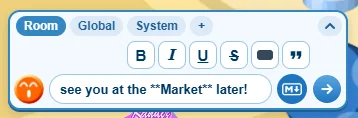
- Or type it. Two stars each side make it bold:
**hello**. - One star each side for italics:
*hello*. Two underscores underline:__hello__. ~~hello~~strikes it through, and||hello||hides it until someone presses it - in the bubble too.@Namelights the line up for that player. Click a player (or press Mention in their menu) and it is written for you.
On a phone: the Markdown button shows once you have typed something. Its switches are big buttons, three a row.
Showing an item
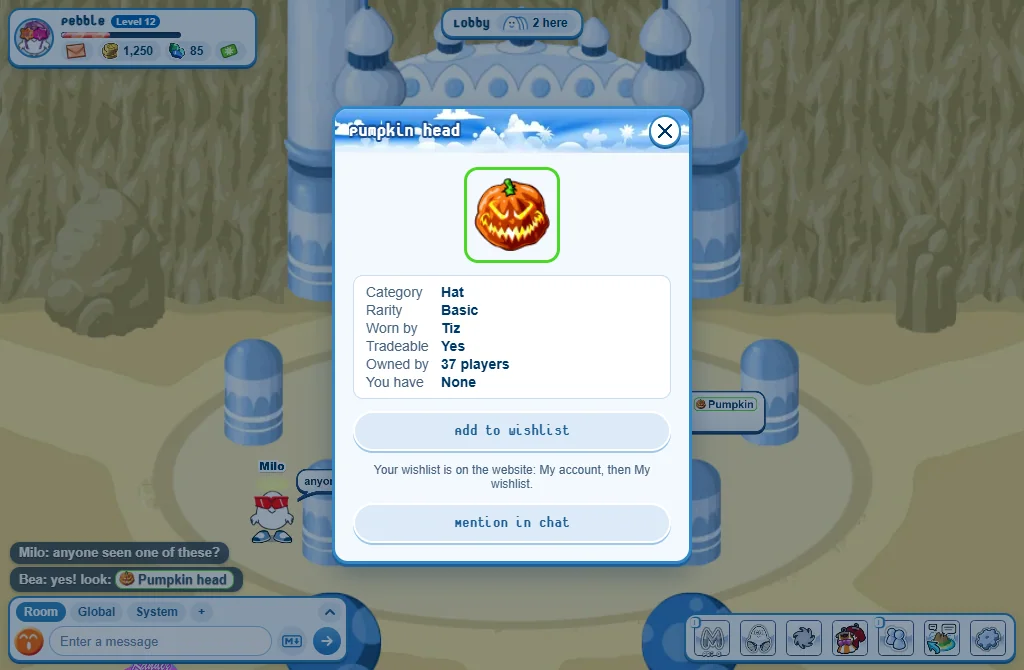
You can show any item in the chat. Its name appears on a small plate that anyone can press.
- Open your Closet.
- Press the item: its buttons show beside the items.
- Press Share.
- It goes to the chat you are looking at: your room, Global, or a private conversation.
- Press an item’s name in the chat to open its card: its picture, its rarity, how many players own it, and whether you do.
- Not yours? Add to wishlist keeps it on your wishlist. Yours? Add to trade list gets it ready to trade.
- You can type it too:
[itemid=880], with the number from the item’s page on the website. Three items a message at most.
Good to know
- Slow down: more than 5 messages in 4 seconds and the chat mutes you for 30 seconds.
- You can share links to munizonline.com - an item’s page, a collection, the Store - and the team’s e-mail address, [email protected]. Press one to open it: what the game has opens in the game, the rest on the website. Any other link is for the team only.
- Don’t want the Global chat? Settings, Privacy, then switch Global chat off.
- Never share your real name, address, school or password in the chat.