Settings
Getting started
The Settings button is the last of the seven. Every change works at once and is remembered on this device.
Game
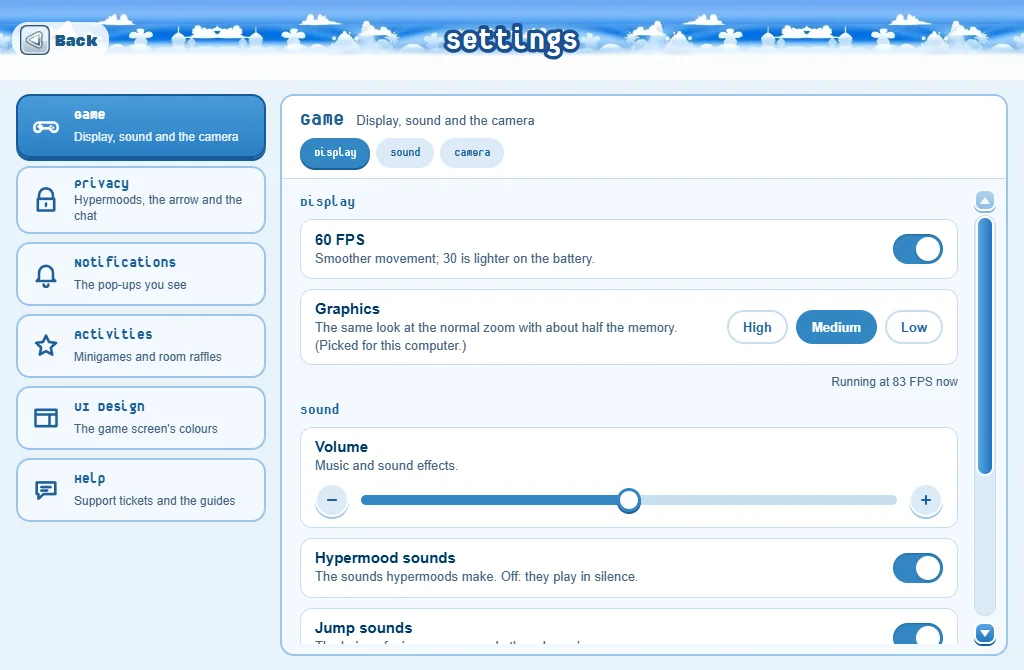
- 60 FPS: smoother movement. Switch it off to save battery.
- Graphics (computers): High, Medium or Low. Low is the lightest, for older computers. The game reloads to switch.
- Volume: music and sounds.
- Hypermood sounds, Jump sounds and Party Bar music: switch off the ones you don’t want to hear.
- Zoom: how close the camera follows you.
Privacy
- Block hypermoods: other players can’t use hypermoods on you.
- Block Spin the arrow: another player’s arrow never lands on you. (See MaZo.)
- Global chat: switch it off to see only your room’s chat.
Notifications
Switch off the kinds of pop-ups you don’t want to see. Each kind has its own switch:
- Friends coming online, friend requests, notifications, room challenges and moments.
- Invitations (to a game, a duel, a party, an emote or a home), trade requests, Room Raffles.
- Records, medals and today’s challenges, MaZo flips, quest progress.
- New items and rewards, New in the Store, the Market and your shop, your home.
- Switched off, they don’t pop up at all. Friend requests still wait in your Friends list, notifications in the bell. An invitation or a trade request you don’t see gets no answer.
- Messages that answer what you just did, staff messages and game updates always show. Show all switches everything back on.
Activities
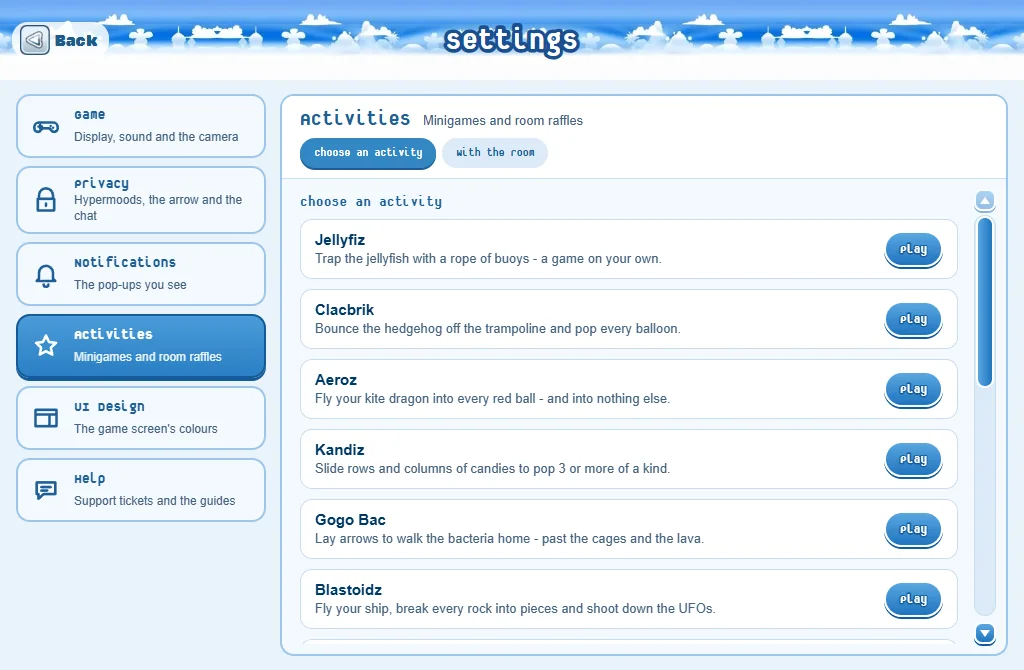
- Every minigame, each with a Play button: play from any room without walking to its stand.
- Under them, Room Raffles and its Open button: see Room Raffles.
UI Design: your colours
A computer always has the Kings View screen, a phone the Pocket Deck. Their colours are yours to pick:
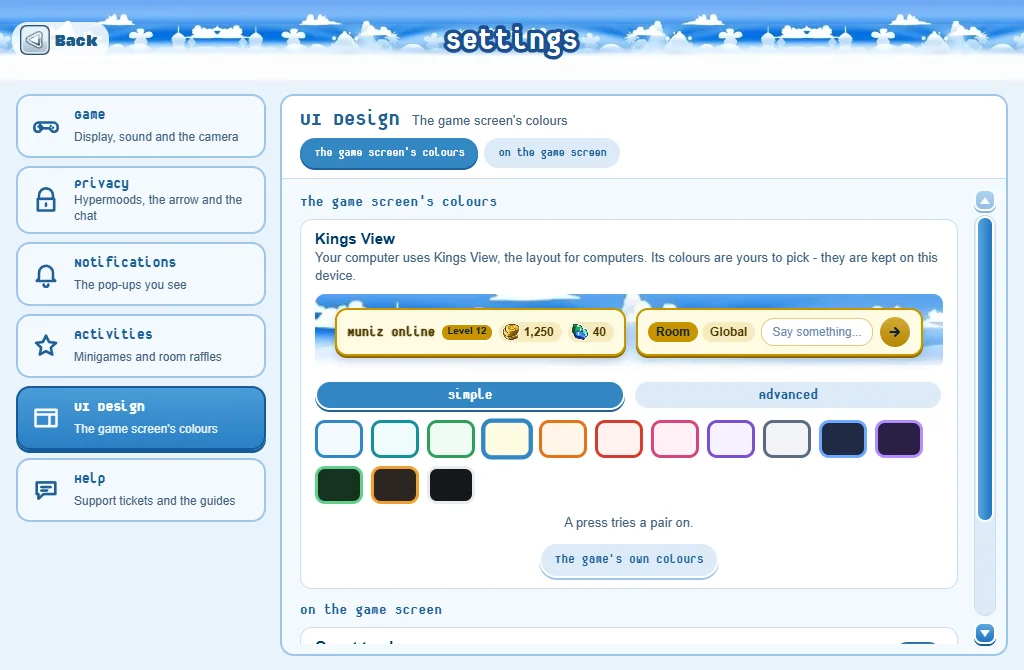
- Simple: press one of the ready-made pairs to try it on. The sample and the screen behind change at once.
- Advanced: pick any colour for the Panels and for the Edges and buttons. The words choose their own colour, so they can always be read.
- The game’s own colours goes back to the island’s blue.
- Quest tracker: show or hide the quest tracker on the game screen.
Good to know
- Game slow on an older computer? Try Graphics: Low and switch 60 FPS off.