The Closet
Your Tiz
Everything you own is in your Closet: clothes, characters, skins, pets, furniture and hypermoods.
It is on the website too: Closet.
Changing your clothes
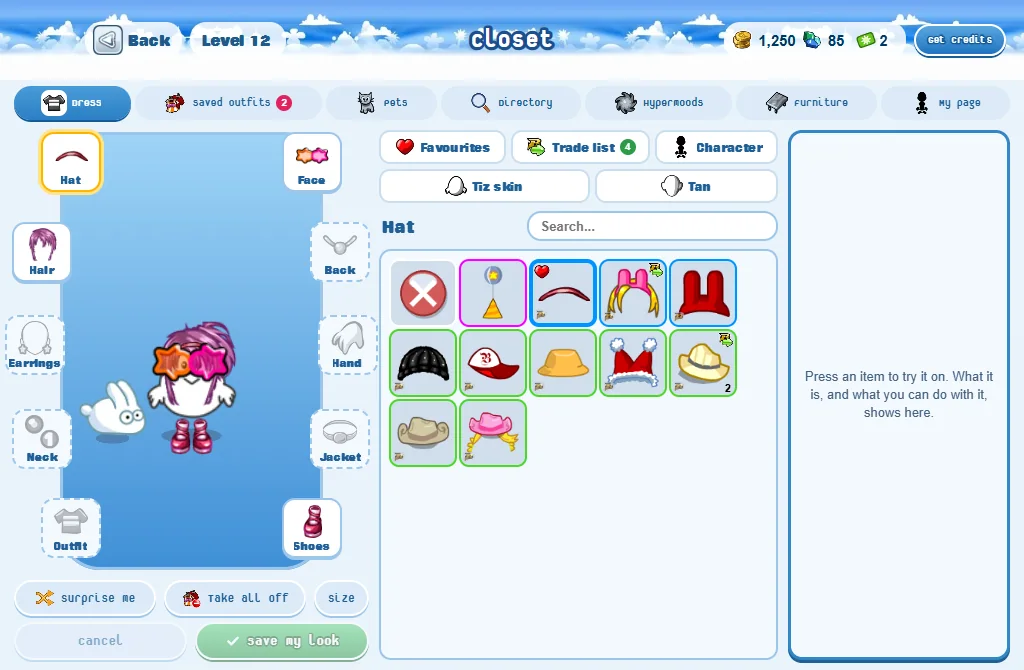
- Press the Closet button. It opens on Dress.
- Press a part round you: Hat, Hair, Face, Outfit, Shoes... Each one shows what you wear there.
- Press an item to try it on. Press it again to take it off.
- Press Save my look to wear your new look. Cancel goes back to how you were.
- Nothing changes for the others until you press Save my look.
- While your Closet is open, the others see you behind a curtain.
- Surprise me: a surprise outfit from what you own. Take all off: takes all your clothes off.
On a phone: the parts are a row of buttons over the items, and what you wear is a row of small pictures: press one to take it off.
The sections
The buttons across the top (at the bottom on a phone):
- Dress: your clothes, part by part.
- Saved Outfits: whole looks you saved, ready to wear again.
- Pets: your pets - press one for everything you can do with it.
- Directory: opens the Item Directory - every item and collection of the game, to search.
- Hypermoods and Furniture: the ones you own.
- My page: what your page on the website says and looks like.
An item’s buttons
Press an item: what it is and its buttons show beside the items.
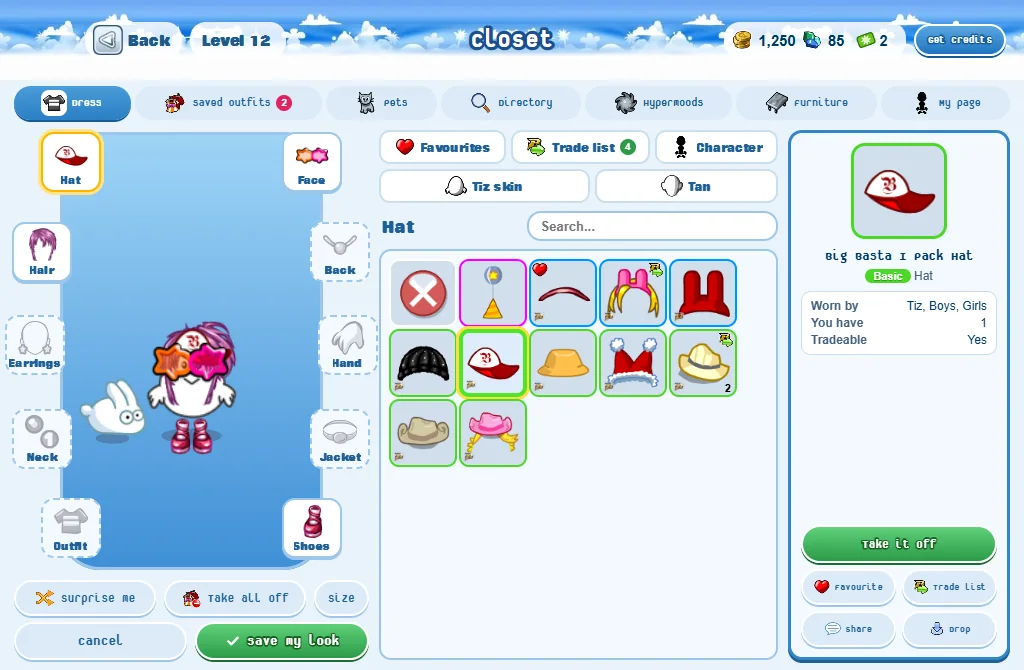
- Wear it / Take it off.
- Favourite: puts it in Favourites, over the items.
- Trade list: needed before you can trade it or sell it at the Market.
- Share: shows it in the chat. Anyone can press its name to see it.
- Drop: leaves it on the floor of the room for anyone to pick up. It can’t be undone.
On a phone: the item shows as a strip under the items, with its main button and More for the rest. Holding your finger on an item opens the same menu.
Your character, skins and tans
Three buttons over the items, in Dress:
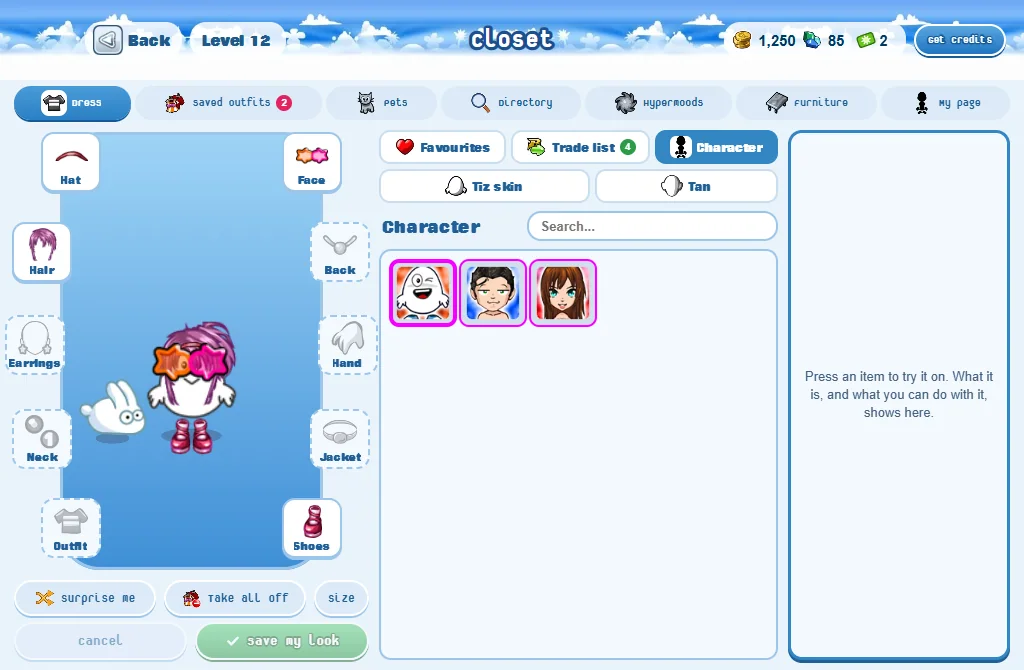
- Character: everyone has three characters - the Tiz, a boy and a girl - and can win or buy more.
- Tiz skin: another look for the Tiz.
- Tan: a skin colour for any character.
- Clothes that don’t fit the character you picked are faded.
Saved Outfits
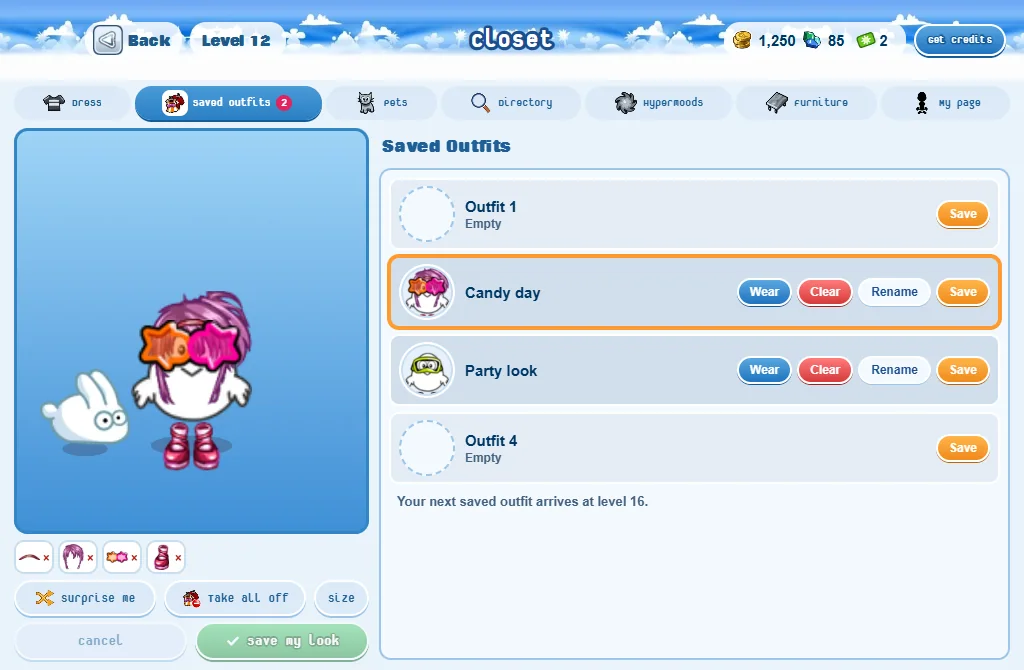
- Put on the outfit you want to keep.
- Open the Saved Outfits section.
- Press Save on an empty row. Rename gives it a name.
- Later, press Wear on a row to put the whole outfit on at once.
- Clear empties a row. Your items stay in your Closet.
- Four outfits show at a time: Next › turns the page.
- Your first three saved outfits arrive at level 6. You get one more every 5 levels after that.
My page
Your page on the website, without leaving the game:
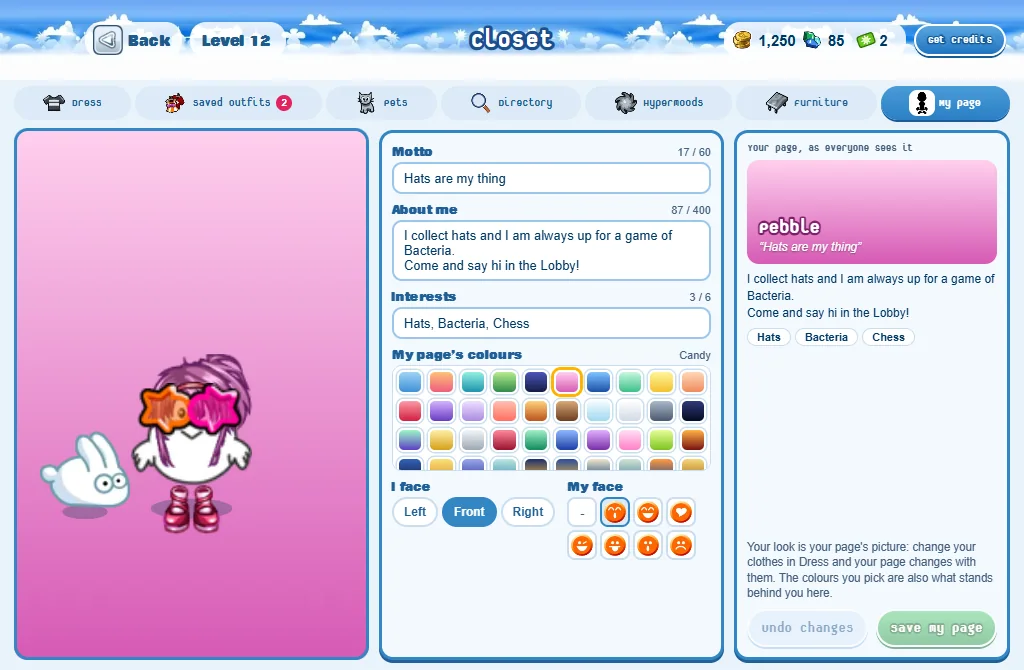
- Your motto, About me and your interests.
- My page’s colours: the colours or the art you pick are also what stands behind you in the Closet.
- I face and My face: how your picture looks on your page.
- Press Save my page. Nothing changes until you do.
Good to know
- Favourites is empty at first: press Favourite on an item to add it.
- Press the Search... box for filters: who it fits, rarity, Tradeable or Untradeable, and Show only your wishlist, favourites, trade list, duplicates...
- A small mark in the bottom corner of an item means it can be traded.
- A boy or a girl with nothing on their feet wears the shoes everybody has. They can’t be taken off.
- Your Closet’s top bar has your credits, gems and boxes, and Get credits.
- Furniture is placed from your home’s Edit mode, not from the Closet.
- A surprise box is in the Hand part: right-click it (hold it on a phone) to open it. The box button by your gems lists all your boxes.