The game screen
Getting started
The game opens from this website: there is no sign-in box in the game itself.
This guide shows how to get in, and what you see once you are on the island.
Opening the game
- Sign in on the website.
- Press Play Now in the header.
- The game opens and signs you in by itself. You start on the island map.
- If you open the game’s address directly, it sends you through the website first. That is normal.
- You can only be in the game once at a time: a second tab is refused.
What is on the screen
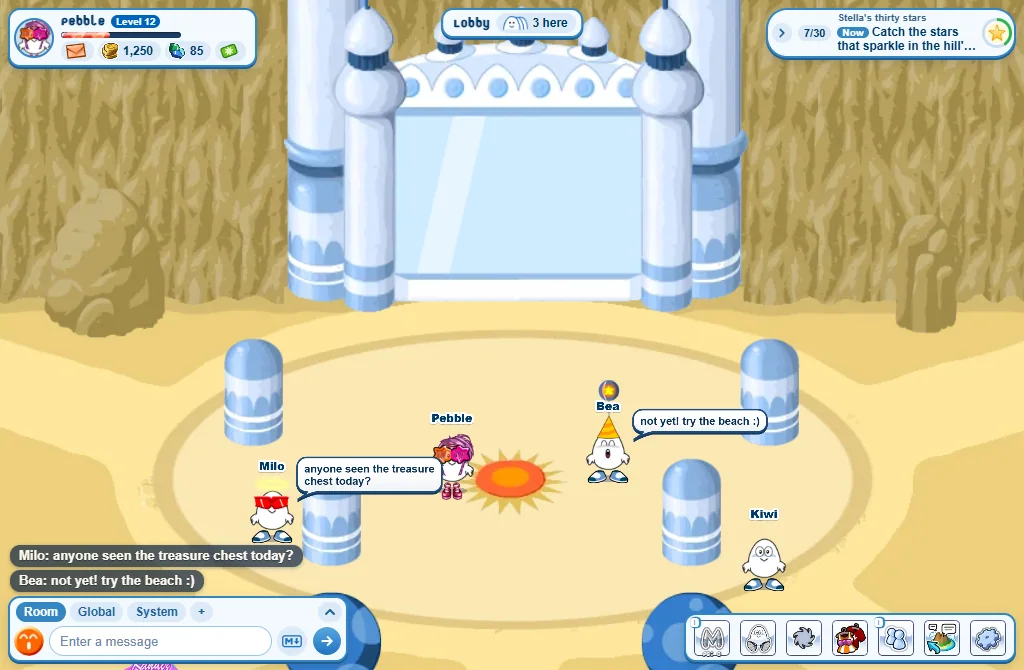
- Top left - your card: your picture, your name, your level and your XP bar. Press your picture to open My Tasks: today’s challenges, your level, your quests and your collections. Under your name: the envelope for your notifications, your credits, your gems, and the box button for your surprise boxes.
- Top middle: the name of the room and how many players are here. Press the number to see who.
- Top right - the quest tracker: the quest you are on and its next step. More about it below.
- Bottom left - the chat: the box where you type, with the tabs Room, Global and System over it. The last lines said show over the room for a moment.
- Bottom right - the buttons: seven of them, explained below.
The seven buttons
The buttons are pictures. On a computer, rest the mouse on one to read its name.

- MaZo: flip the coin and try to keep your streak going. Rest the mouse on it for more games of luck. See MaZo.
- Sit: sit down where you stand. Rest the mouse on it for Jump and the actions: see Actions and emotes.
- Hypermoods: the special effects you own.
- Closet: your clothes, your pets and everything else you own.
- Friends: your friends, who is online, and your friend requests.
- Map: the island map, to travel.
- Settings: graphics, sound, zoom, privacy, the screen’s colours and more.
On a phone: hold your finger on MaZo or Sit to see what is over it.
The quest tracker
- It shows the quest you are on, how far you are, and what to do Now.
- No quest under way? It says New quest and names one you can start.
- Press it to open your quests. Its little arrow folds it down to a picture.
- Don’t want it? Settings, UI Design, then switch Quest tracker off.
On a phone
The same things, placed for a small screen:
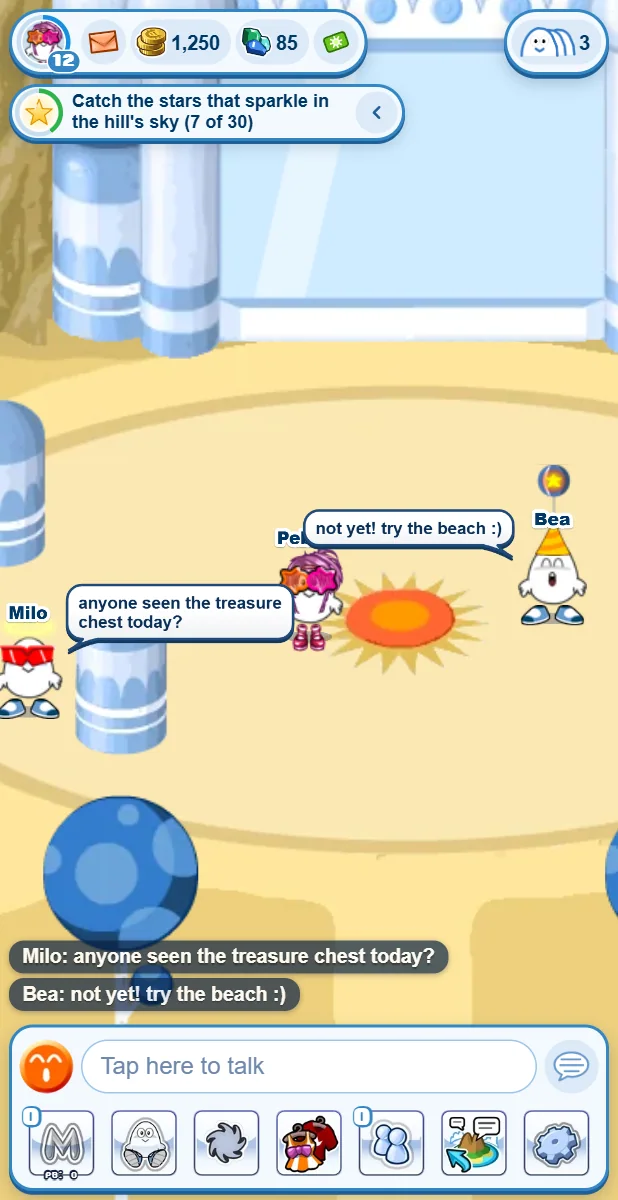
- The last lines said show above the talk box.
- The bubble button beside the talk box opens the Chat history: Room, Global, System and your private conversations.
- Tap Tap here to talk to write to your room.
- The quest tracker is a line under your card.
- Turn your phone on its side and the buttons make a column on the right.
The envelope: your notifications
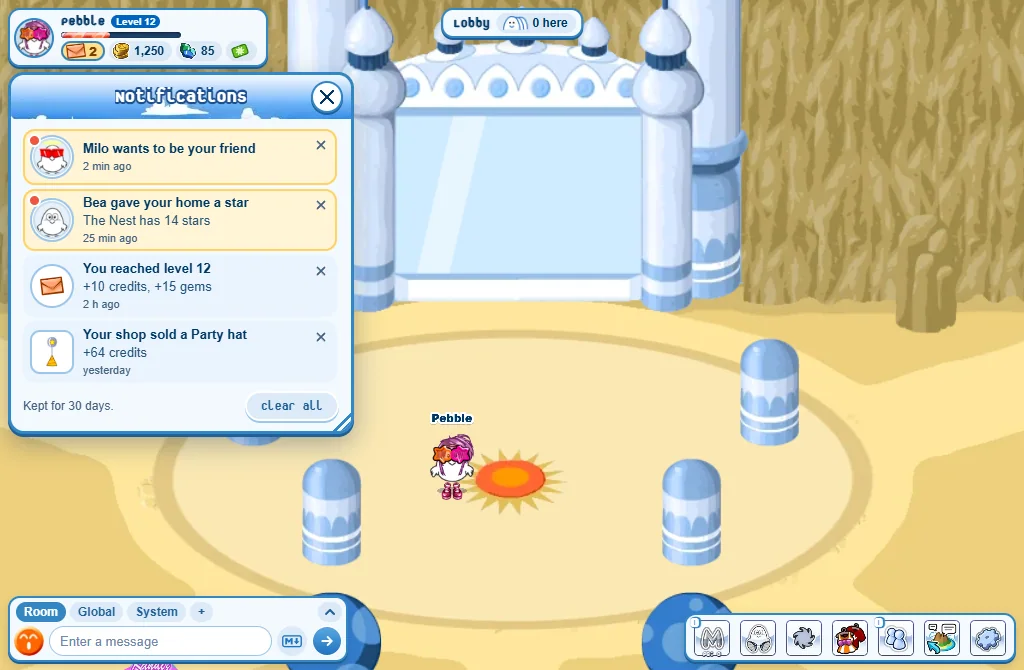
- Friend requests, sales in your shop, stars for your home, prizes and news all land here - even the ones that came while you were away.
- Press a line to go to what it is about.
- They are kept for 30 days. The same list is on the website: Notifications.
- Short notes also pop up for a moment. Their badge tells you what they are: a green tick when something worked, an orange ! when it didn’t, a blue i for news and hints.
Island News
Big news from the Muniz team can pop up in the game, for everyone - even if you were away when it was posted, it waits for your next visit.
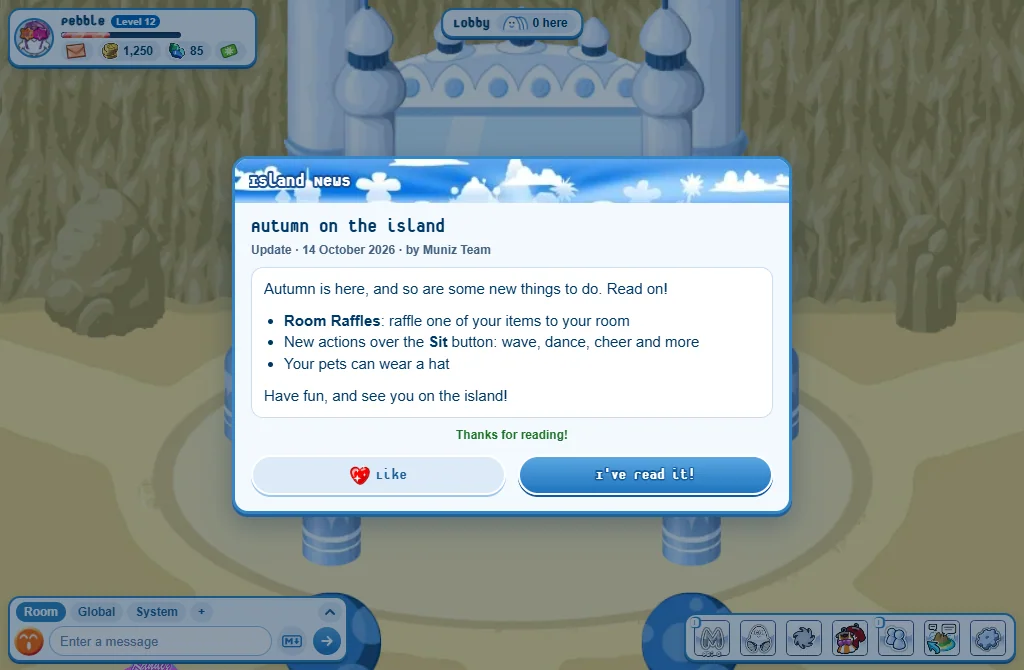
- Read the post. Scroll down to its end.
- Then press Like if you liked it.
- Press I’ve read it! to close it.
- The buttons only wake up once you have scrolled to the end.
- A link to the Store, the Closet or the Market opens the game’s own. The post waits for you behind it.
- All the news is on the website too: News.
Good to know
- Away for 5 minutes, or on another tab or window? Others see you asleep (zzz). After 30 minutes without moving, the island lets you rest: press Reconnect to come back.
- If your connection drops, wait: the game reconnects by itself and puts you back where you were.
- A blue note saying A new version of the game is ready? Press Refresh when you have a moment: you come back to the same room.