Your home
Pets and your home
Every player has a home. You decorate it with furniture, add extra rooms and decide who may come in.
Going home
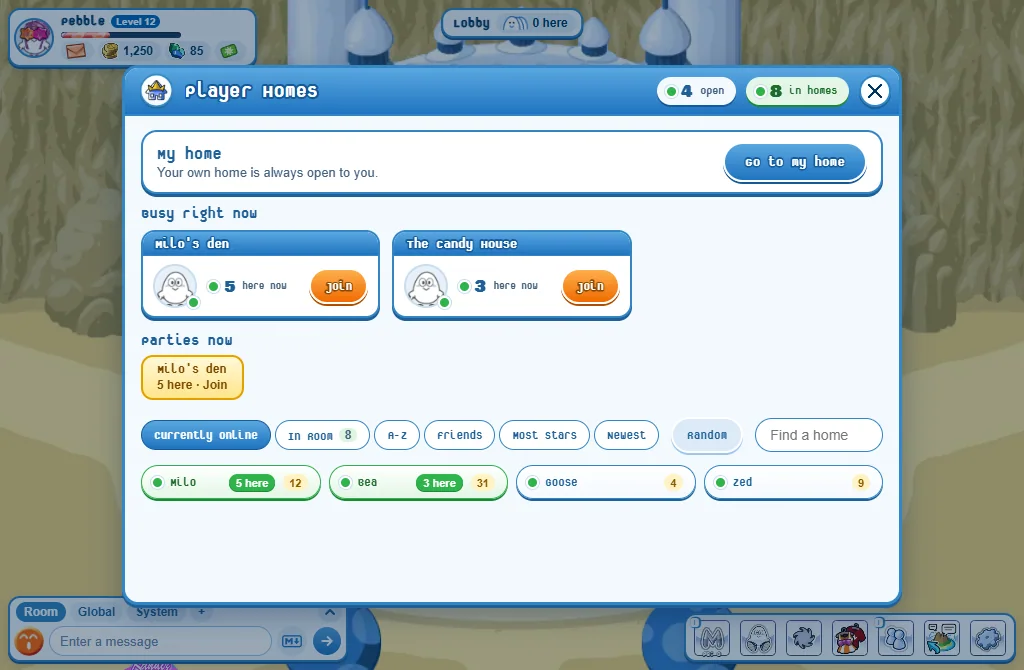
- Open the island map.
- Press the round picture of a house: Player Homes.
- Press Go to my home.
- Quicker: type /home in the chat.
- The door at the bottom of the room is the way out.
Edit mode: placing furniture
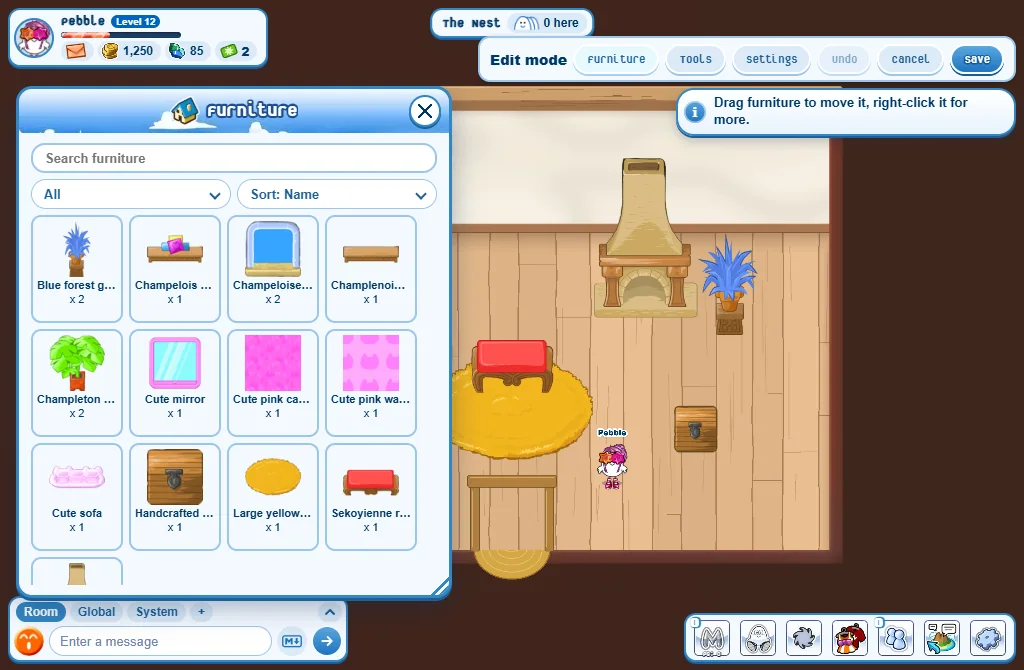
- Press Edit beside your home’s name.
- Press Furniture: your pieces are listed.
- Press a piece and drop it in the room.
- Click (or right-click) a placed piece for its menu: Move, Turn, Size, Layer (in front or behind), Flip, Colour, Place another or Take back.
- Press Save. Nothing is kept until you do.
- Move: drag the piece, or press Pick up and put it down somewhere else. The arrows nudge it a little.
- Flip: ↔ Mirror turns it to face the other way, ↕ Upside down turns it over.
- Place another: a copy of the piece beside it, turned and sized the same - if you have one more in your inventory.
- Take back: the piece goes back to your inventory.
- Exact numbers (at the bottom of the menu): type where it stands, its turn, its width and height.
- Undo takes back your last step. Cancel leaves the room as it was.
- A Floor or a Wall texture piece covers the whole floor or wall. Rugs lie flat: you walk over them.
- A room holds up to 150 pieces.
On a phone: tap a piece in the list: it appears in the middle of the room. Drag it into place, and tap it for its menu.
Keys for Edit mode
On a computer, with a piece’s menu open:
- The arrow keys nudge it (hold Shift for bigger steps).
[and]turn it,-and+make it smaller or bigger.- F mirrors it, Delete takes it back, Esc closes the menu.
- Ctrl+Z is Undo, at any time in Edit mode.
Room tools
In Edit mode, press Tools. The Room tools window has three parts:
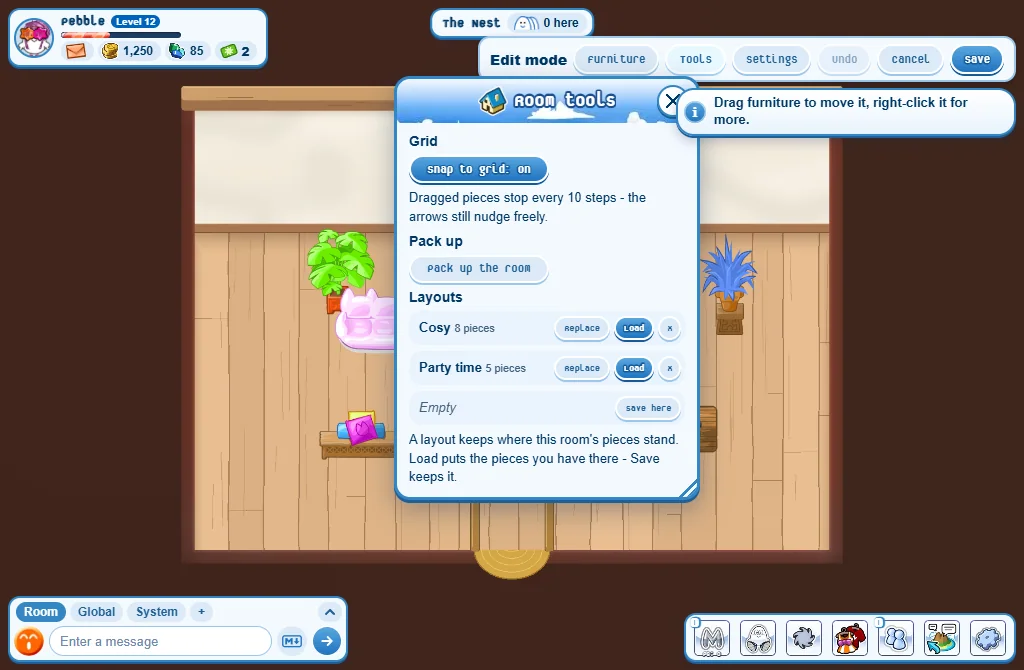
- Grid: with Snap to grid: On, a piece you drag stops every 10 steps, so your pieces line up. The arrows still nudge it freely. With Snap to grid: Off, it stops anywhere.
- Pack up: Pack up the room sends every piece back to your inventory - your Doorways stay. Changed your mind? Undo brings it all back.
- Layouts: three slots that keep where your room’s pieces stand. Save here (or Replace) keeps the room as it is now, with a name you choose. Load puts your pieces where the layout says. x deletes it.
- A layout uses the pieces you have: one that is no longer in your inventory is left out, and the game tells you how many. Your Doorways stay where they are.
- A layout can be loaded in any room of your home.
- Packing up and loading a layout change the room in Edit mode only: press Save to keep it so.
Colouring a piece
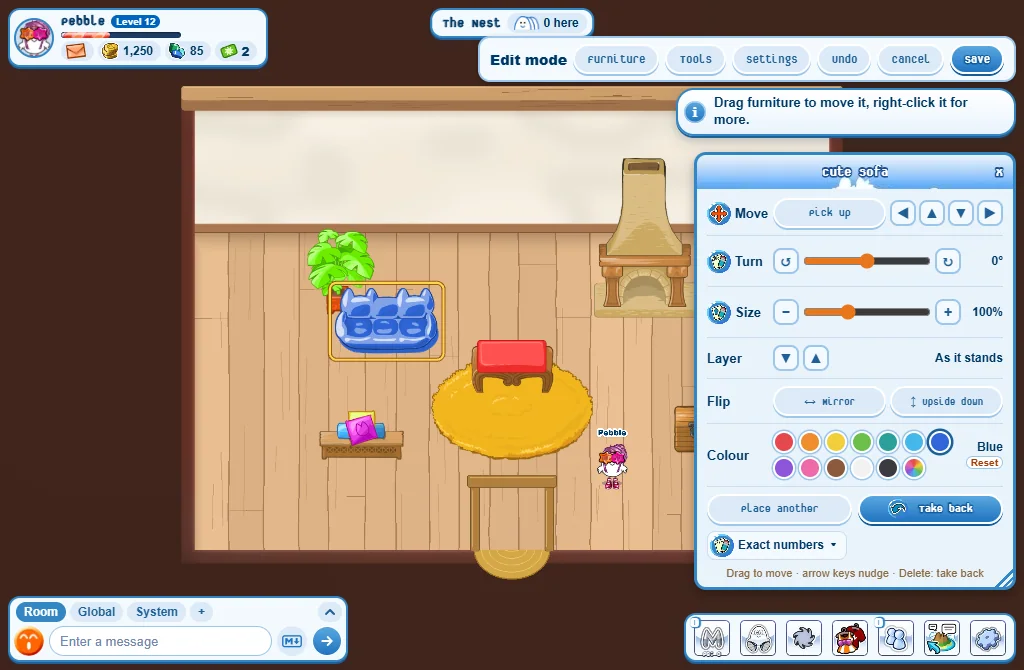
- In Edit mode, open a placed piece’s menu.
- In the Colour row, press one of the twelve colours - or the last one, Any colour, to pick your own.
- Press Save.
- It is free, and works on floors and walls too.
- Reset gives the piece its own colours back.
Home settings
In Edit mode, press Settings:
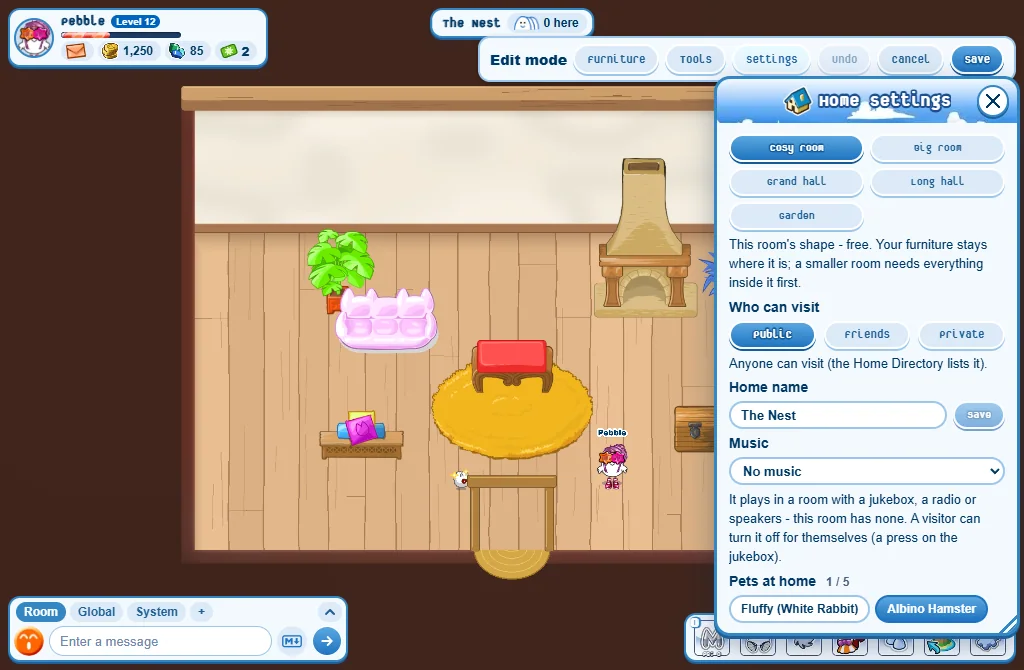
- Room shape: Cosy room, Big room, Grand hall (the biggest), Long hall or Garden. Free, and your furniture stays where it is - a smaller shape needs every piece inside it first.
- Who can visit: Public (anyone), Friends or Private.
- Home name.
- Music: needs a jukebox, a radio or speakers in the room.
- Pets at home: up to 5 of your pets live here and your visitors see them, even while you are away. Each gets a little pet XP a day there.
- Log in here: start in your home instead of on the map.
Extra rooms: Doorways
A Doorway placed in your main room opens a whole new room for your home. A home can have up to 3 extra rooms.
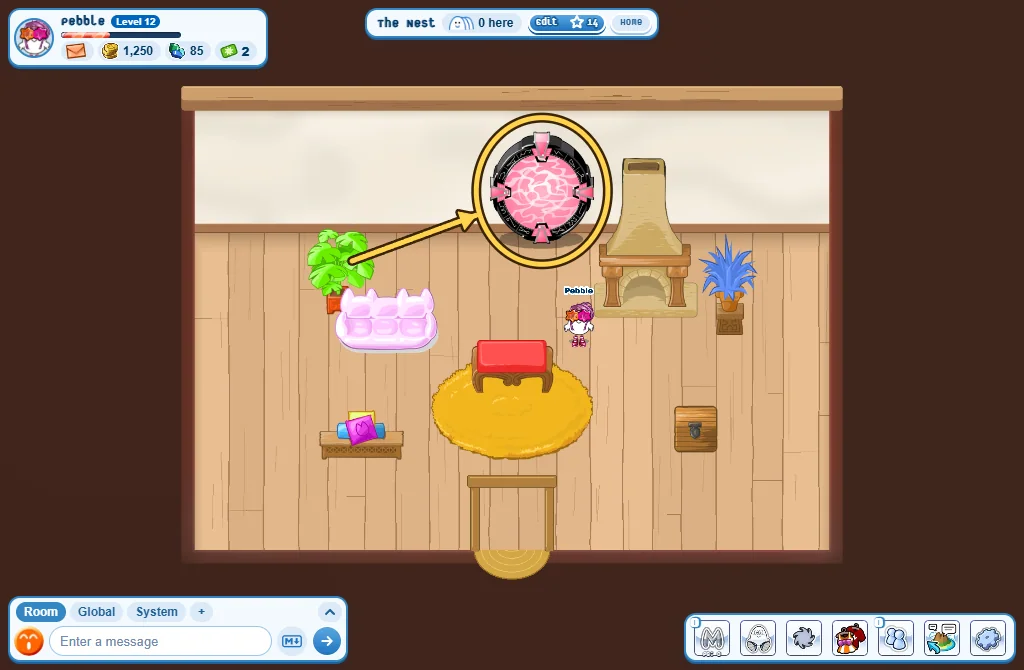
- Buy a Doorway in the Store: the Housing tab, under Special Items.
- Go home and press Edit, then Furniture. In the list of kinds (it says All), pick Home expansions.
- Place the Doorway on the wall of your main room.
- Press Save: your extra room is made.
- Walk into the Doorway: you are in your extra room.
- Decorate an extra room as you do the main one: Edit there, then Furniture. It holds up to 150 pieces too.
- An extra room’s Settings pick its own shape. Who can visit, the name and the music follow your main room’s settings.
- The way back: the door at the bottom of the extra room takes you to your main room, just in front of the Doorway.
- Your visitors can walk through your Doorways too.
- Doorways go in the main room only, never in an extra room.
- Take back on a Doorway, then Save, removes its extra room: that room’s furniture goes back to your inventory.
The Trampoline
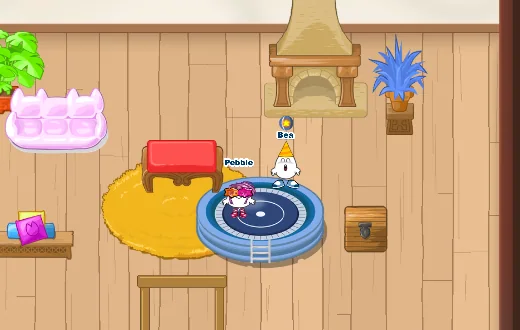
- The Trampoline lies flat on the floor, like a rug: you walk onto it.
- Stand still on its mat and you bounce - higher than a jump, again and again until you walk off.
- It bounces everyone who stands still on it: you and your visitors, all at once. Everyone in the room sees it.
- Press Jump in mid-air for a double jump off the mat!
- Nobody bounces while you are in Edit mode: you can move it like any piece.
A home NPC
- An At Home NPC is a character that lives in your home. From its menu, Set up NPC: its name, its look and what it says to your visitors. It can even open the Store or host a game.
Good to know
- Forgot to press Save? Your changes are gone: Edit mode always asks before throwing them away.
- Only a Public home is listed for everyone and collects stars.
- Placing furniture gives XP.
- Want a closer look? In a home, the mouse wheel (two fingers on a phone) zooms in. It always opens showing the whole room.